Summarize the post with AI
Are you looking for an easy tutorial on how to add Christmas snowfall effects in WordPress site? You got the right tutorial blog. In this blog, we will show you how to add snowfall effects with a simple toggle setup.
A simple Christmas snowfall effect can make a massive look change on any website. This is one of the few small things that you can implement in your site to make a bigger impact. It helps you stand out from the competitor’s website. It grows sessions for the users and also helps you make better sales conversions.
Add Christmas Snowfall Effect Using a WordPress Plugin
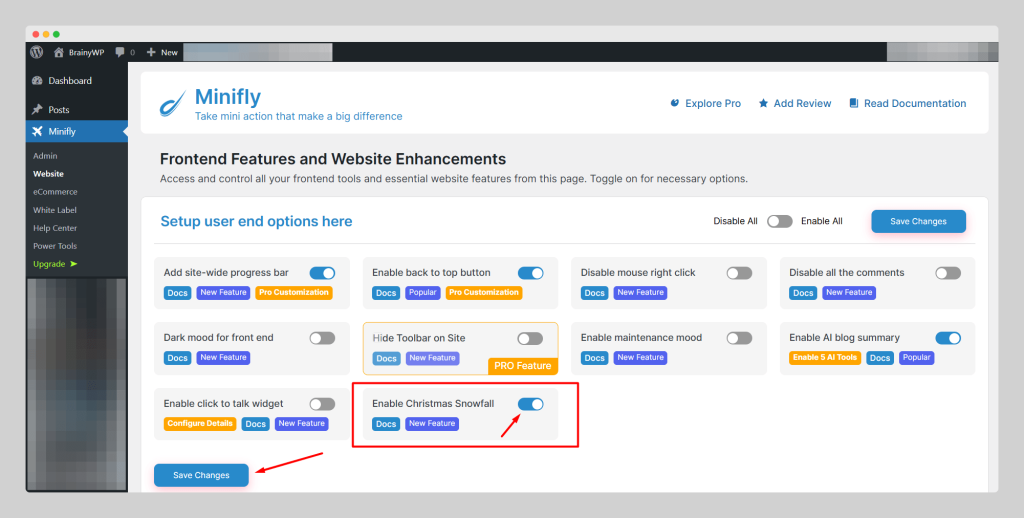
Install and activate the Minifly plugin. The Minifly free version is available at the WordPress directory, while the pro version needs to be purchased from our site. Minifly Christmas snowfall effect is a free feature. Once activated, go to the Minifly menu on the left side of the admin panel and click on the website sub-menu.
Now, you can see the ‘Enable Christmas Snowfall’ toggle in the list. Click on it and then click ‘save changes’. That’s it, and the snowfall effects in WordPress are activated across the full website front end.
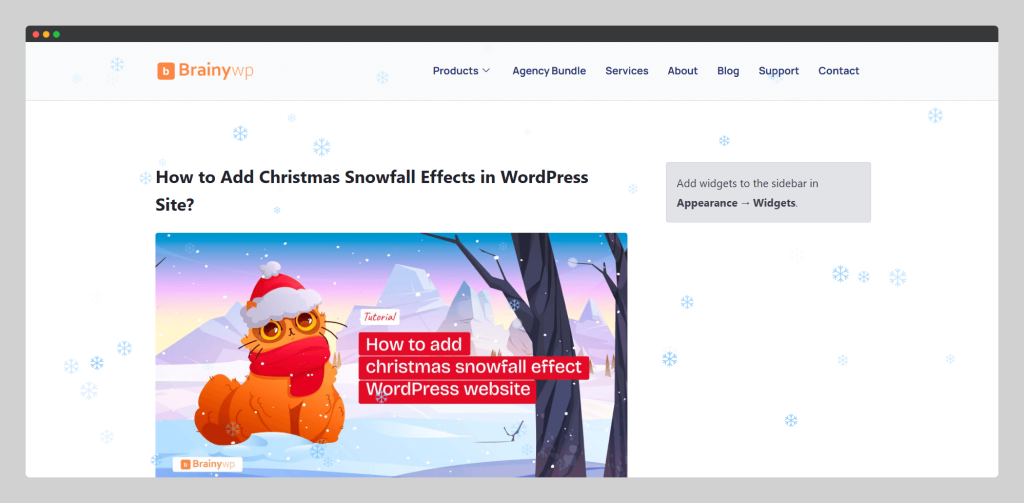
Just reload or open a new page and you can see beautiful snowfall on the site. We are currently working to improve the features. We are hoping to have a new template soon in the future.
Other Notable Features of Minifly
Apart from the Christmas Snowfall Effects, Minifly brings 27+ more features to the table for you. With those features, you can remove all other plugins while keeping enhancing your website with toggle based setup.
- Hide All the Admin Notices
- Disable Gutenberg Editor
- WordPress Back to Top Button
- Duplicate Page and Post
- Disable All Comments
- Disable RestAPI Call
- Add Full Site Progress Bar
- Website Dark Mood Option
- AI Article Summarizer
- Click to Chat via WhatsApp
Alternative Snowfall Effect in WordPress Plugin
Let’s explore the alternative of the Christmas snowfall effects plugin available inthe WordPress directory. There are a few plugin that has snowfall effect features, but we have considered only a dedicated plugin for this section.
AWPLife Weather Effects
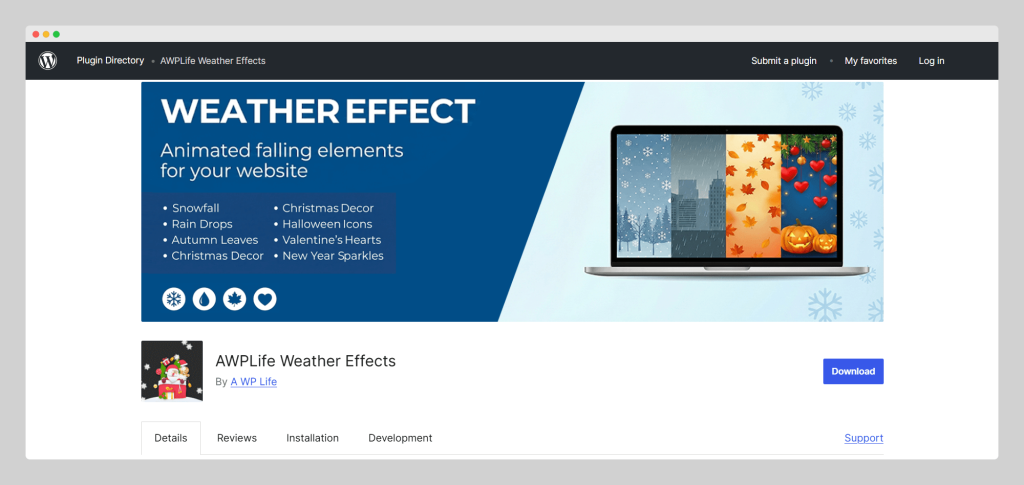
AWPLife Weather Effects is a WordPress plugin that adds animated snowfall effects in WordPress. It lets you show snow, rain, leaves and festival decorations for seasons and special days. The plugin is easy to use and works from a simple settings panel with live preview support. It runs smoothly on both desktop and mobile devices. Overall, this plugin is a good choice to create a seasonal and festive Christmas snowfall effect in WordPress.
Christmas Panda
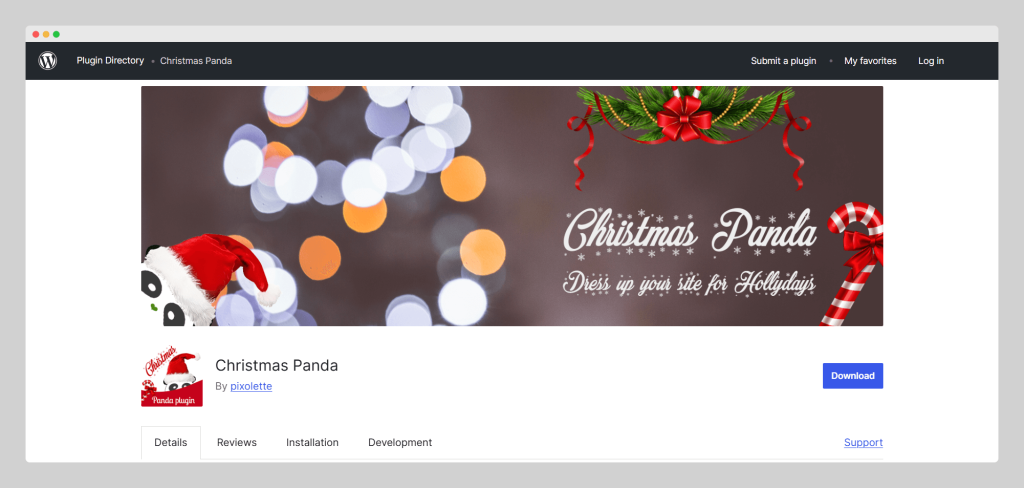
Christmas Panda is a WordPress plugin that helps you decorate your website for the Christmas season. It allows you to add Christmas snowfall effects, Christmas decorations and festive pop-ups. The plugin includes simple admin options to manage decorations and control Christmas snowfall effects. You can easily enable or disable features from the dashboard.
DevVN Snow
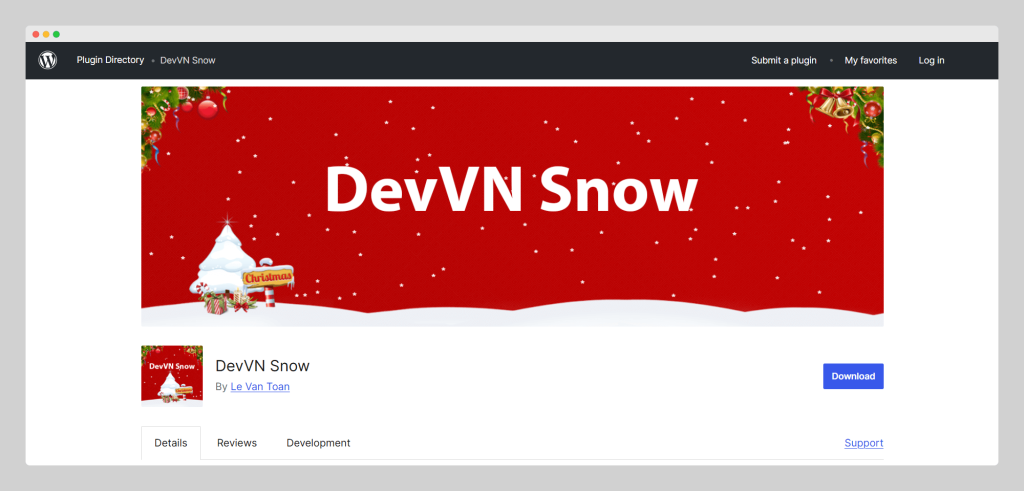
DevVN Snow allows you to add Christmas snowfall effects and decorations to your website. You can add snowfall, a Christmas bell scene, Christmas tree with this plugin.
The above 3 plugin has the highest numbers of active users according to the WordPress directory. They brought extended Christmas snowfall effects to the WordPress website. But keep in mind, they come as a stand-alone plugin, which counts +1 for your WordPress plugin list.
Add Snowfall Effect Using Custom JavaScript
Please try the custom code snowfall effect only if you know how to add code on the site.
You can also add Christmas Effects in WordPress using custom JavaScript code. Before you try this, make sure you keep a backup of your website. This method gives you more control and keeps your website lightweight.
No extra plugin dependency, which brings better performance compared to heavy plugins. This also gives you full control over snow speed, size, and quantity. And you can easily remove it after the Christmas season. This method is ideal for developers or site owners who are comfortable adding small code snippets.
We have added a simple custom JavaScript snowfall effect-related code. Look at the code closely.
<script>
document.addEventListener("DOMContentLoaded", function () {
    const snowflakes = 50;

    for (let i = 0; i < snowflakes; i++) {
        let snow = document.createElement("div");
        snow.innerHTML = "❄";
        snow.style.position = "fixed";
        snow.style.top = "-10px";
        snow.style.left = Math.random() * window.innerWidth + "px";
        snow.style.fontSize = Math.random() * 20 + 10 + "px";
        snow.style.opacity = Math.random();
        snow.style.animation = "fall linear infinite";
        snow.style.animationDuration = Math.random() * 5 + 5 + "s";
        document.body.appendChild(snow);
    }
});
</script>
How to Add the Script to WordPress
Now your task is to add the code to the site to see it in action. You can add this script in several ways:
- Child theme: You can make a child theme if not done yet. Then, in the footer.php file, add the given code.
- Using a plugin: There are many Code Snippets plugins. Those allow you to add JS code anywhere in the site. Make sure you add JS-related code snippets. For most users, the Code Snippets plugin is the safest option.
- Via a custom plugin: You can also create a basic plugin to add the above code to your site.
If you understand the code, then you can easily customize the effect by increasing or decreasing the number of snowflakes, changing the snowflake icon and adjusting animation speed and size.
Add Snowfall Effect Using Custom CSS and HTML
If you want a very lightweight solution, a CSS-based snowfall effect is a good choice. This method uses animations instead of JavaScript. As there is no JavaScript, this approach is fast and efficient.
CSS snowfall effects usually rely on:
- Multiple snowflake elements
- CSS animations using
@keyframes - Fixed positioning to cover the screen
Here is a simple example using CSS:
<div class="snowflake">❄</div>
<div class="snowflake">❄</div>
<div class="snowflake">❄</div>

.snowflake {
    position: fixed;
    top: -10%;
    color: white;
    font-size: 20px;
    animation: snowfall 10s linear infinite;
}

@keyframes snowfall {
    0% { transform: translateY(-10%); }
    100% { transform: translateY(110vh); }
}
How to Enable or Disable Snowfall Effects Easily
If you use Minifly, then you already know, it’s just a toggle click to control your Christmas snowfall effects in WordPress. If you use a child theme, then go back to the footer.php file and remove the code.
- A plugin → use the enable or disable toggle
- A custom plugin → add an option in the settings page
Recommended Christmas Snowfall Effects Plugin
We recommend Minifly because the plugin gives you full control to show the ‘Christmas Snowfall Effects’. There will be a toggle that can be turned on/off with just a click. No new plugin is needed to install, while you get a massive number of other website enhancement features. And we also own the Minifly. So, if you face any issues, we can provide support instantly.